
What is Segment Analytics.js? Segment Analytics.js is the JavaScript library that collects data from websites and sends it to Segment, using a small set of calls: identify for users, track for actions, page for page views and group for accounts. Once the snippet or package is installed, the library loads, creates an anonymous identifier, queues events and delivers them to Segment, which then routes them to destinations in cloud mode or loads other tools in device mode. This guide explains how Analytics.js works, how to install it, how to use the core calls, how to handle identity, consent and single page applications, how to test and debug, and which mistakes cause missing events or double counting. Capabilities change, so confirm details in current Segment documentation.
Short answer: Analytics.js is the web library for Segment. Install it once, call identify, track and page according to your tracking plan, handle consent and test in the debugger.
What is Segment Analytics.js?
It is the main web source for what is Segment and implements the events defined in your tracking plan. It feeds destinations and builds the identity data used by Unify profiles. For web context, see what is an API.
How the library works
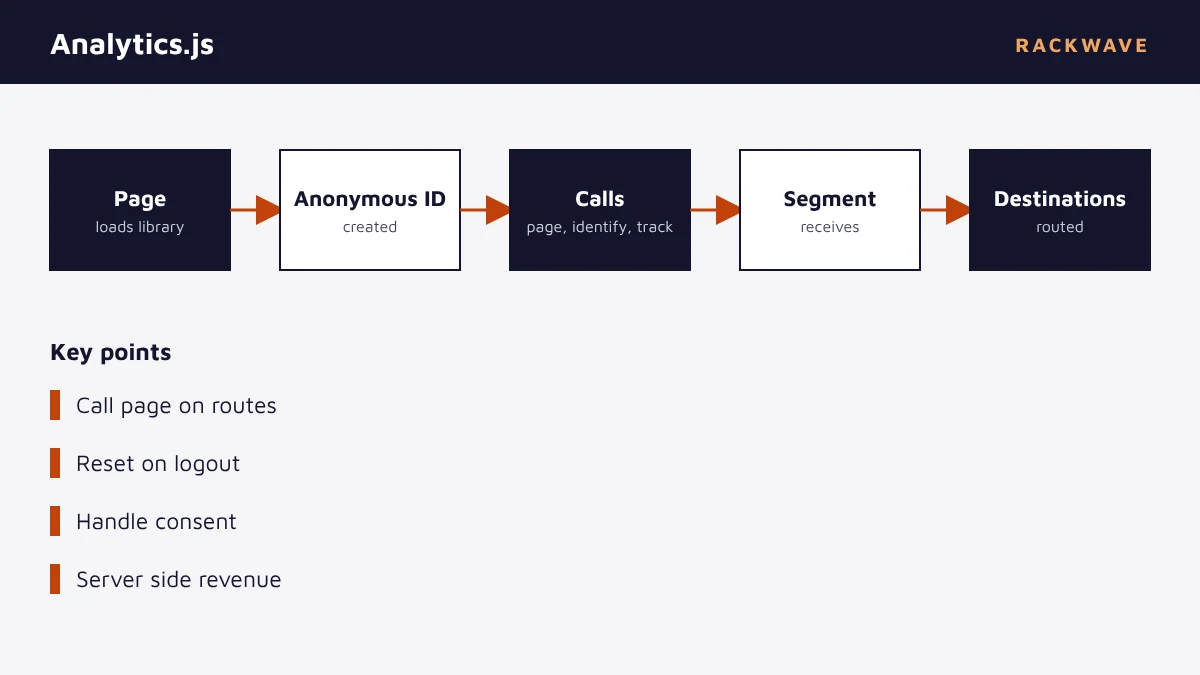
| Call | Purpose | Example |
|---|---|---|
| analytics.page | Records a page view | Pricing page |
| analytics.identify | Links a user ID and traits | User signs in |
| analytics.track | Records an action with properties | Order Completed |
| analytics.group | Links a user to an account | Company and plan |
| analytics.reset | Clears the current user on logout | Sign out |
| analytics.ready | Runs code after destinations load | Device mode tools |
Installation options
- Add the snippet to the head of every page, ideally through a tag manager.
- Or install the npm package in a modern application.
- Use the write key for the correct source and environment.
- Load the library early so that early events are not lost.
- Keep separate sources for production and testing.
- Review the snippet after each major version change.
Single page applications and consent
| Topic | Guidance |
|---|---|
| Page views | Call page on each route change, not only on first load |
| Identity | Call identify after login and reset on logout |
| Consent | Load or enable destinations only after the user agrees to the matching category |
| Cookies | Document first party cookies used by the library |
| Blockers | Expect some traffic to be blocked and plan server side events for key data |
| Performance | Load asynchronously and avoid heavy device mode tools |
How to implement and verify
- Plan. Use the tracking plan to list calls and properties.
- Install. Add the snippet or package with the right write key.
- Add calls. Implement page, identify and track calls.
- Handle consent. Connect the library to your consent tool.
- Debug. Use the debugger and browser tools to check events.
- Compare. Check counts against other analytics for a few days.
- Release and monitor. Watch volumes and violations after launch.
Common mistakes
- Calling page only once in a single page app.
- Forgetting to call reset on logout.
- Sending personal data in event properties.
- Installing the snippet twice.
- Using production keys in testing.
- Relying on client side events for revenue.
Our API development service builds server side tracking and our data analytics service validates tracking plans.
A worked example: a content and pricing website
A software company installs Analytics.js through a tag manager and sends page calls on every route change. When a visitor submits a demo form, the site calls identify with the email and name, and then track with Demo Requested and properties for source and page. After login, identify uses the stable user ID.
The consent tool controls which destinations load, so advertising tools receive data only after agreement. The team compares counts with another analytics tool for a week and finds that a single page route did not call page, which is fixed. Server side events send Order Completed, so revenue figures stay reliable even when browsers block scripts.
Identity handling in the browser
The library creates an anonymous ID stored in a first party cookie or local storage, and links it to a user ID when identify is called. Decide what happens when the same browser is used by several people, and call reset when a user logs out so that the next visitor is not tied to the previous person. Pass the same user ID from the server where possible, and test the full journey from anonymous visit to sign in, to make sure history joins correctly.
Performance and page speed
Analytics code should not slow down your site. Load the library asynchronously, keep device mode tools to the minimum and prefer cloud mode where you can. Measure the effect on page load and interaction using standard performance tools, and review the cost of each added destination. Fast pages are better for users and for search, and a lean tracking set makes debugging much easier.
Privacy and cookies
Analytics.js uses identifiers that may be personal data. Describe the cookies and storage in your policy, provide choices through a consent tool and respect them in the library configuration. Avoid placing personal data in page URLs or event properties, and limit traits to what is needed. Provide a way to handle deletion requests across Segment, destinations and the warehouse. See what is GDPR for principles and review settings with legal advisers.
Testing and debugging
Use the Segment debugger and browser developer tools to watch events leave the page and arrive in the source. Check names, types and required properties against the tracking plan, and test on several browsers and devices. Include logged in and logged out journeys, and test with and without consent. Keep a test script for key flows and repeat it after each release, so that changes to the site do not quietly break tracking.
Maintenance and governance
Name an owner for the web implementation, and keep a record of the library version, write keys and installed destinations. Review the implementation when the site is redesigned or migrated, since new templates often drop tracking. Use release checks that include analytics, and tie changes to the tracking plan process. Regular care keeps web data complete and consistent over time.
Working with tag managers
Many teams install Analytics.js through a tag manager so that marketers can control tags without a code release. This is convenient, but it needs discipline. Restrict who can publish changes, use a preview environment, and name tags clearly. Avoid sending the same event from both the tag manager and the application code, which causes double counting. Document which events come from which place, and review the container regularly to remove old tags.
Migrating from other web analytics tools
When moving from separate tags to Analytics.js, run both for a period and compare counts, because differences in definitions are common. Map existing event names to the new plan, remove tags that duplicate destinations and tell teams which reports will change. Plan the cut over for a quiet period, and keep a rollback option. A careful migration protects historical comparisons and builds trust in the new data stream.
Key takeaways
- Analytics.js is the Segment JavaScript library for collecting website data.
- Use page, identify, track and group calls according to the tracking plan.
- Call page on every route change in single page apps and reset on logout.
- Connect the library to consent tools and keep personal data out of events.
- Test in the debugger and compare counts with other tools.
Quick glossary
| Term | Meaning |
|---|---|
| Analytics.js | The Segment JavaScript library for websites |
| Write key | The key that links the library to a Segment source |
| Anonymous ID | An identifier created for an unknown visitor |
| Device mode | Loading destination tools directly in the browser |
| Reset | A call that clears the current user identity |
Read next: BigQuery vs Snowflake: Which Cloud Data Platform? · BigQuery Streaming Inserts: Real-Time Ingestion Guide · BigQuery Access Control: IAM, Policy Tags and Row Security
Frequently asked questions
What is Analytics.js?
It is the Segment JavaScript library that collects website data and sends it to Segment.
Which calls should I use?
Page for views, identify for users, track for actions and group for accounts.
How do I handle single page apps?
Call page on each route change.
When should I call reset?
On logout, so the next visitor is not tied to the previous user.
How do I handle consent?
Connect the library to your consent tool and enable destinations only for approved categories.
How do I debug?
Use the Segment debugger and browser developer tools.
Why are some events missing?
Common causes are blockers, late loading, duplicate snippets and missing calls on some routes.
Should I track revenue on the client?
Prefer server side events for revenue because they are more reliable.